
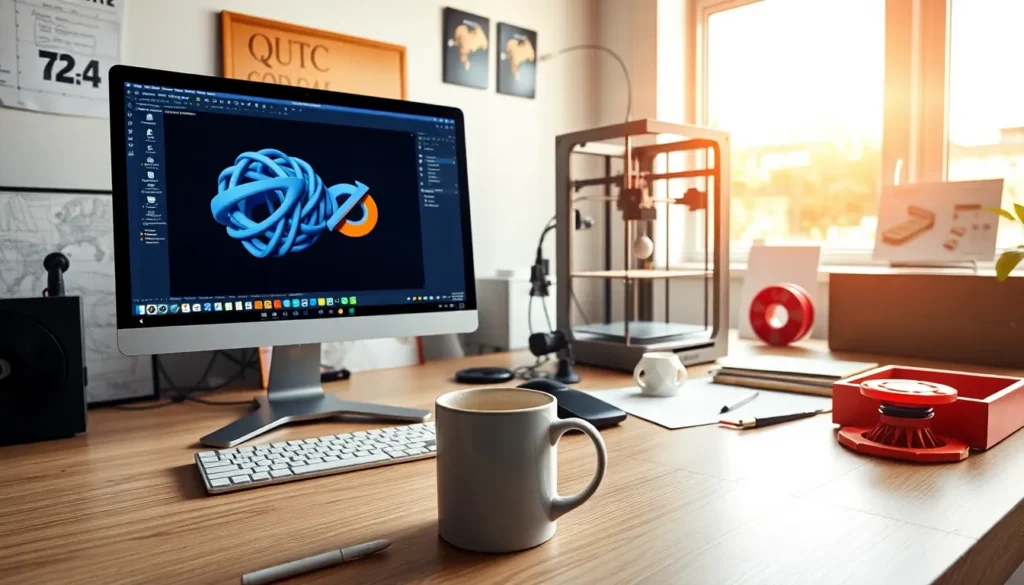
3D printing has become the holy grail for makers, artists, and innovators alike. But what if you could take your digital dreams and turn them into tangible creations right from your computer? Welcome to the captivating world of 3D printing with Blender. And don’t worry, you’re not entering a black hole of technical jargon. This guide is designed to make your journey fun, informative, and maybe even a little snappier than your last printer jam. So grab your favorite caffeinated beverage, and let’s immerse.
Understanding the Basics of 3D Printing
What Is 3D Printing?
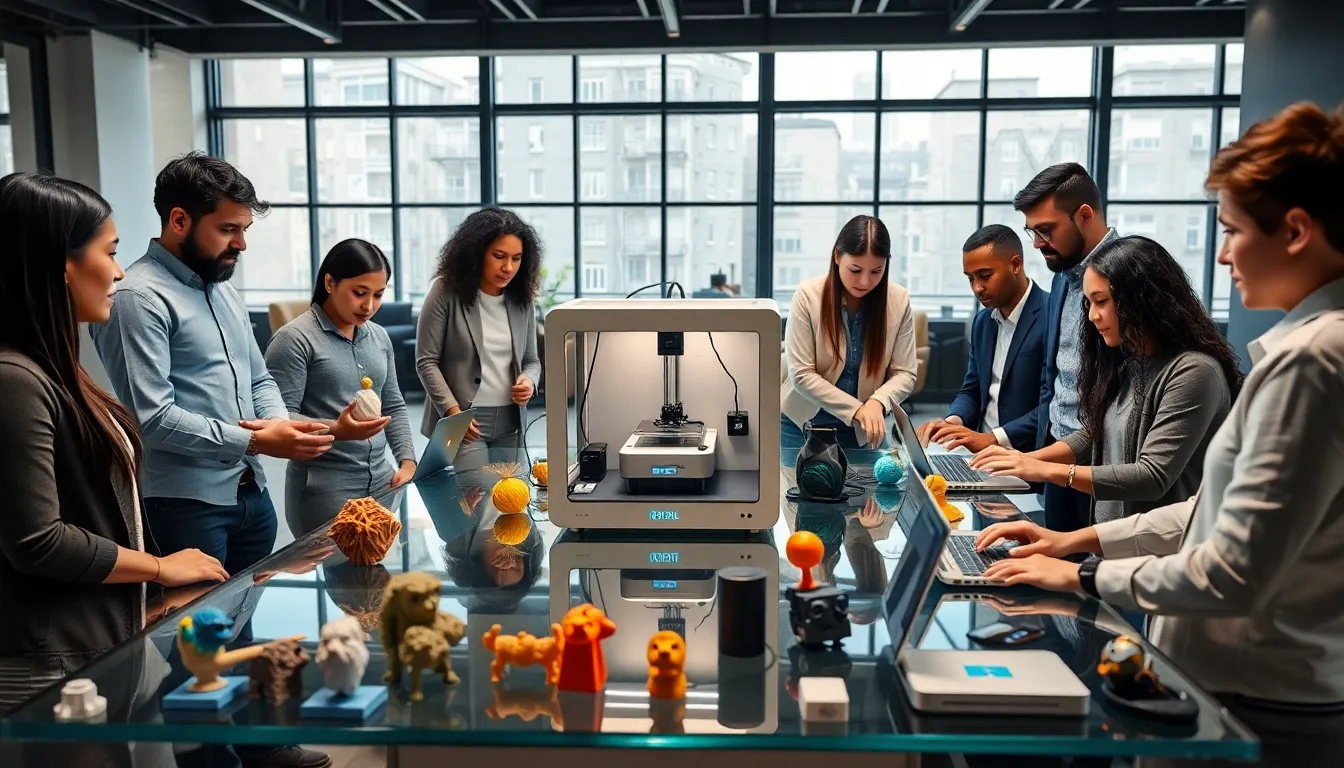
3D printing, often known as additive manufacturing, is the process of creating three-dimensional objects layer by layer. Unlike traditional subtractive manufacturing, where material is cut away from a solid block, 3D printing adds material to build the object from the ground up. This innovative technology has revolutionized industries from medicine to fashion, enabling rapid prototyping and personalized designs like never before.
Types of 3D Printing Technologies
When it comes to 3D printing, there’s not just one path to glory. The landscape is rich with various technologies, including Fused Deposition Modeling (FDM), Stereolithography (SLA), and Selective Laser Sintering (SLS). FDM is the most popular at home and community makerspaces, while SLA shines in precision tasks like intricate jewelry designs. SLS takes things a notch higher by using powdered materials, perfect for more advanced applications. Understanding these types ensures that you pick the right tech for your creative aspirations.
The Role of Blender in 3D Printing
Setting Up Blender for 3D Printing
Blender isn’t just for animation and modeling: it’s a powerhouse for 3D printing. To get started, users must ensure that their Blender setup is optimized for this specific task. First, install the right add-ons, specifically the Import/Export settings for STL files. This little gem allows seamless transitions between Blender and your printer’s slicing software.
Importing and Creating Models
Got an idea? Great. Blender provides tools that open the door to unlimited creativity. Whether it’s sculpting from scratch or importing models from online repositories, Blender equips users to design anything from whimsical characters to functional prototypes. The intuitive interface allows easy manipulation, ensuring your concepts can be realized in the physical world.
Preparing Your Model for Print
Slicing Your Model
After creating your masterpiece, the next step is preparing the model for slicing. Use slicing software to convert your 3D models into a format that your printer understands. This involves setting parameters like layer height, print speed, and infill density, all crucial to achieving that jaw-dropping finish.
Exporting to STL or Other Formats
Once the model has been sliced, it’s time to export your creation. The most commonly used format for 3D printing is STL. But, many modern 3D printers and slicers also support OBJ, AMF, or 3MF files. Ensure you choose the right format based on your printer’s requirements.
Finalizing Your Print Settings
Choosing the Right Materials
Selection of materials shouldn’t be an afterthought. Each 3D printing material offers unique characteristics. For instance, PLA is user-friendly and biodegradable: it’s perfect for beginners. ABS, on the other hand, provides durability, making it suitable for functional prototypes. Knowing what each material brings to the table will guide you toward impressive results.
Calibration and Printer Settings
A well-calibrated printer is a happy printer. Before clicking ‘Print,’ double-check your settings. Ensure bed leveling is spot on and calibrate nozzle temperature based on the material. Don’t skip this step: a little optimization goes a long way.
Troubleshooting Common Issues
Even the most seasoned makers hit snags along the way. 3D printing can be a fickle beast. Common issues include problems like warping, layer separation, or poor adhesion. Each of these has remedies that involve checking bed leveling, print speed, or even ambient temperature. Keep a troubleshooting guide handy, and you’ll be better prepared to tackle whatever challenges come your way.
Post-Processing Techniques
You’ve printed your model, but the fun doesn’t stop there. Post-processing can elevate your print from good to incredible. Consider techniques like sanding, painting, or assembling multiple prints for a more complex build. Each technique has its benefits, allowing more personality and flair to shine through in your final product.


